LocalSend: How to Transfer Files Between Android, iPhone, Windows and Mac Without Internet

Moving a photo from an Android phone to an iPhone, copying a large video from a Mac to a Windows PC, or sending documents from a laptop to a phone can become surprisingly awkward when the devices belong to different ecosystems. LocalSend solves this problem by letting nearby devices exchange files directly over the same local network. No account is required, files do not have to be uploaded to cloud storage first, and an active internet connection is not necessary. As long as the devices can communicate with each other through the local Wi-Fi network, LocalSend can handle photos, videos, documents, folders, text and other common file types. The same app is available for Android, iOS, Windows, macOS and Linux, so the transfer process remains familiar even when the sending and receiving devices come from different manufacturers.
What LocalSend Is and What You Need Before You Start
LocalSend is a free, open-source file-sharing app designed for devices that are physically close to one another. Instead of sending a file to an external server and then downloading it again on another device, LocalSend transfers it through the local network. This distinction is important when there is no internet connection, when broadband is slow, or when you simply do not want to upload a large file before moving it between devices sitting in the same room. A Wi-Fi router can provide the required local connection even if that router currently has no access to the internet. What matters is that both devices can see each other inside the same network.
The app covers the major operating systems used on phones and personal computers. Android users can obtain it through Google Play, F-Droid or an APK provided by the project, while iPhone and iPad users can install it through Apple’s App Store. On macOS it is available through the App Store and other supported installation methods, while Windows users can install the current desktop release or use supported package managers. The project’s compatibility information lists Android 5.0, Windows 10 and macOS 11 Big Sur as minimum versions for current releases. Although the project’s general compatibility table lists iOS 12, the current Apple App Store listing in 2026 requires iOS 13.0 or later, so iPhone owners installing the current App Store version should treat iOS 13 as the practical minimum.
It is also worth keeping LocalSend reasonably up to date on every device. As of September 2026, the project’s latest stable GitHub release is version 1.18.2, released on 21 August 2026, with updated Windows binaries published afterwards. The 1.18 series introduced changes intended to improve transfer performance and make large groups of files less likely to cause freezing or delays. Updates can also matter when two devices run releases that behave differently during discovery or transfer. If LocalSend has been installed manually rather than through an app store or package manager, remember that the desktop app does not rely on a universal built-in automatic updater, so an older installation can remain in place until you update it yourself.
Why LocalSend Works Between Apple, Android and Windows Devices
The main advantage of LocalSend is that the sender and receiver use the same file-sharing system instead of relying on features tied to one manufacturer. An iPhone does not need to understand an Android-specific sharing feature, and a Windows computer does not have to imitate Apple’s AirDrop. Both devices simply run LocalSend. When the app starts, it looks for other LocalSend devices on the local network and shows them under recognisable temporary device names. This removes much of the usual friction associated with sending files between products that were not originally designed to work together.
Once nearby devices have been detected, the sender chooses what to transfer and then selects the receiving device. LocalSend supports ordinary files such as photographs, videos, PDFs, office documents, archives and many other formats. It can also handle folders and text, which makes it useful for more than moving the occasional photograph between phones. The recipient is normally shown an incoming transfer request and can decide whether to accept it. There is no need to create a shared account, exchange email addresses or sign in to the same cloud service before the two devices can communicate.
The actual data remains on the local network during a standard LocalSend transfer rather than being routed through an external storage service. Encryption is enabled by default in current configurations, with LocalSend using an HTTPS connection between devices. This is especially useful for private documents or large personal media collections that you would rather not upload elsewhere merely to move them a few metres. Transfer speed depends mainly on the quality of the local connection, the Wi-Fi capabilities of the two devices and how quickly their storage can read or write the data. A modern local network can therefore move large files considerably faster than a workflow that requires an internet upload followed by another download.
How to Transfer Files Between Android, iPhone, Windows and Mac
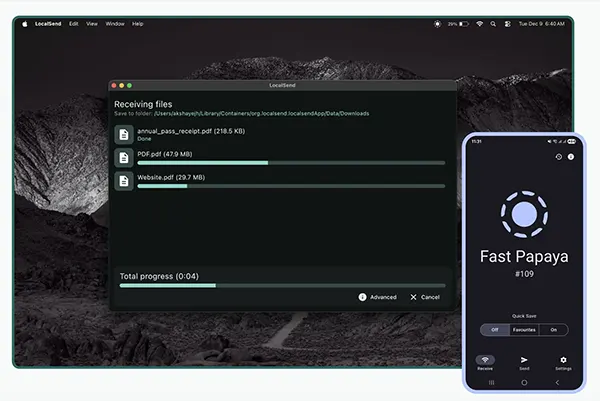
Start by installing LocalSend on both the sending and receiving devices. Connect them to the same local Wi-Fi network and open the app on each one. On an iPhone or iPad, allow LocalSend to access the local network when iOS requests permission; without that permission, the phone may be unable to find other devices. Windows or macOS may also display a firewall or network-access prompt the first time the app runs. Allow LocalSend to communicate on the trusted local network. After a few moments, each device should appear in the other’s nearby-device view without requiring manual pairing.
To send something, open LocalSend on the source device, choose the Send section and select the required content. Depending on the device, you can select individual files, media, folders or text. After making the selection, LocalSend displays the available receiving devices. Tap or click the intended recipient and check that you have chosen the correct device, particularly when several phones and computers are running LocalSend in the same room. The receiving device then gets a request showing what is about to arrive. Once the recipient accepts it, the transfer begins directly over the local connection and LocalSend displays its progress.
When the transfer finishes, the files are saved on the receiving device according to its operating system and the LocalSend save settings. Desktop users can choose an appropriate destination folder, which is useful if LocalSend is regularly used for work documents, photography or video. Mobile operating systems impose more rules on where apps can save particular kinds of content, so photos and ordinary files may be handled differently depending on their format and the permissions granted to LocalSend. Current releases have improved handling of media formats that cannot be added directly to a phone’s gallery by saving them as ordinary files instead, reducing the risk that an otherwise valid transfer fails merely because the receiving system does not recognise the media type.
Android to iPhone, iPhone to Windows and Android to Mac in Practice
For an Android-to-iPhone transfer, connect both phones to the same Wi-Fi network and open LocalSend on each. On Android, choose the photograph, video or document that you want to send and select the iPhone from the list of nearby devices. Accept the request on the iPhone and leave LocalSend active while the transfer is being completed. This is particularly convenient for moving full-resolution photographs or videos between phones without first sending them to yourself through a messenger or cloud drive. Because the transfer takes place locally, the size of the file does not consume your internet upload allowance.
The same process works from an iPhone to a Windows computer. Open LocalSend on the PC and the iPhone, select the required items on the phone and choose the Windows device as the destination. This can be a practical way to copy a group of iPhone photos to a PC that is not part of Apple’s device ecosystem. There is no need to connect the phone by USB, configure iCloud for Windows or send the files through email. For repeated transfers, give the devices clear names inside LocalSend so that it is immediately obvious which computer should receive the files, especially in a home or office where several machines may be visible at once.
Android-to-Mac transfers follow the same pattern. Once LocalSend is installed on macOS and Android and both devices are on the same local network, the Mac should appear as a possible recipient. This is useful when working with photographs, downloaded documents, recordings or other files created on an Android phone but needed on a Mac. Transfers also work in the opposite direction, so a Mac can send a PDF, image, video or folder back to Android through the same interface. The consistency is one of LocalSend’s strongest practical qualities: after learning the process once, there is little to relearn when the combination of devices changes.
What to Do If LocalSend Cannot Find the Other Device
If the devices do not appear, first confirm that they are genuinely connected to the same local network. Two devices can show similar Wi-Fi names and still be separated by network settings. Guest Wi-Fi is a common source of trouble because many routers deliberately prevent devices on a guest network from communicating with one another. A router feature called AP isolation or client isolation can have the same effect. Internet access may continue to work normally while LocalSend sees nothing nearby. Moving both devices to the main trusted Wi-Fi network is therefore one of the first things to try when discovery fails.
Firewalls are another common cause, particularly on Windows computers. LocalSend’s official setup guidance uses TCP and UDP traffic on port 53317 for incoming local communication by default. Most users do not need to configure the port manually: the important step is usually to allow LocalSend through the operating system’s firewall when prompted and to classify the home or office network appropriately. Security software with its own firewall can also block local traffic even when the Windows firewall setting appears correct. If LocalSend suddenly stops finding a PC after a security-suite update, checking that software’s local-network rules is more useful than repeatedly reinstalling the app.
Updating and restarting LocalSend can solve less obvious connection problems. Version 1.18.2 addressed several network-related issues, including compatibility with older LocalSend releases and a problem involving system proxies. If one device is running a much older version, update both before spending time on advanced troubleshooting. VPNs and network-filtering apps can also change how local traffic is handled, so temporarily disabling one can help establish whether it is responsible for the problem. After changing network permissions or firewall settings, close and reopen LocalSend on both devices. In many cases the devices will then detect each other automatically without any further configuration.
Security, Limitations and When LocalSend Makes Sense
LocalSend is designed for local transfers, but sensible precautions still matter. Check the receiving device name before sending confidential files and keep the normal confirmation request enabled when using a network shared with other people. Features that automatically accept incoming transfers are convenient on your own trusted devices, but they deserve more caution in workplaces, hotels, schools or other shared networks. Keeping encryption enabled and using current versions of the app also reduces unnecessary risk. The fact that LocalSend avoids an external file-storage service limits exposure to third-party servers, but it does not make an untrusted local network automatically safe.
There are also clear limits to what LocalSend is intended to do. It is not a remote file-delivery service for sending documents to someone in another city over the internet. The devices normally need to be reachable through the same local network, and the speed of the transfer depends on that network. Weak Wi-Fi reception, an overloaded router or an older phone can reduce performance. Mobile operating systems can also suspend apps running in the background, so keeping LocalSend open during a large transfer is sensible. If you need permanent remote access, automatic cloud synchronisation or shared folders available from anywhere, a different type of service may suit that job better.
For nearby devices, however, LocalSend addresses a very specific everyday problem well: moving files without caring whether the sender uses Android, iPhone, Windows or Mac. It is particularly useful in mixed-device households, offices, classrooms and travel situations where internet access is unavailable, expensive or simply unnecessary for a local task. Install the app on the devices you use regularly, connect them to the same trusted network, select the files and choose the recipient. Once that basic routine is established, moving a large video from a phone to a computer or passing documents between different operating systems becomes a local transfer rather than a chain of uploads, downloads, cables and temporary cloud links.