Obsidian in 2026: how to build an offline notes system and a “second brain” on your smartphone

Obsidian works well on a phone for one simple reason: your notes are just local Markdown files in a folder you control. That makes it realistic to keep a personal knowledge system fully usable on a train, on a flight, or in a country where roaming is painful. The trick is to design the vault for mobile first, then add sync, backups, and encryption in a way that doesn’t create conflicts or leak private data.
Vault structure on mobile: folders, file rules, and a setup that stays tidy
Start by treating your vault as a small filesystem project, not an app database. A practical mobile structure is: 00-Inbox (quick capture), 10-Projects, 20-Areas (ongoing responsibilities), 30-Reference, 40-Archive, and an Attachments folder. The point is speed: on a phone you need predictable places to put things, and the inbox lets you capture first and sort later without breaking your flow.
Keep filenames boring and stable. Use short, descriptive titles and avoid frequent renaming on mobile, because renames can create sync churn and broken links if a sync method lags. For meeting notes, create one file per meeting date; for topics, one file per topic. If you work in multiple languages, pick one filename convention (for example, English slugs) and keep the content multilingual inside the note.
Decide early where the vault lives. On Android, choose device storage if you want the folder to be visible to other tools (file managers, backup apps) and easier to protect with system-level encryption. On iPhone, keeping the vault in local app storage is the most predictable for offline work; using iCloud can be workable, but it has known edge cases around conflicts and duplicated “.obsidian” settings files when multiple devices touch the vault. Build your habits around the storage choice rather than trying to “fix” it later.
Tags vs links (and why most people overuse tags)
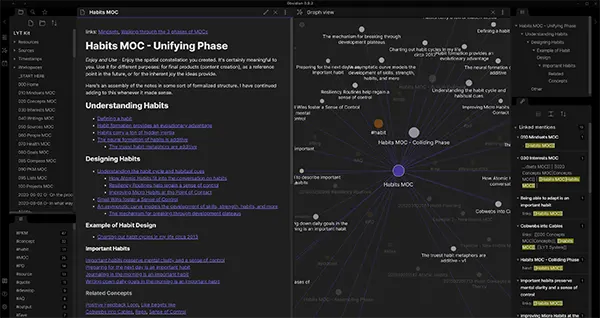
Links are the backbone of a “second brain” style vault because they encode meaning: this idea relates to that project; this person is part of that meeting; this concept supports that decision. When you link notes, you create paths for recall that work even when you can’t remember the exact keyword. On mobile, linking is still fast if you keep note titles consistent and use a small number of core note types.
Tags work best as light labels for states, not as your main taxonomy. Use them for things like #to-review, #waiting, #draft, or #evergreen, because those are filters you’ll genuinely want on a phone. If you find yourself building deep tag hierarchies, that’s usually a sign the note should be split, renamed, or connected with links instead.
A good compromise is: links for meaning, tags for workflow. For example, a project note links to research notes, meeting notes, and decisions; a single #to-review tag lets you pick up unfinished thinking when you have time. This approach also keeps search clean offline: you can search for tags quickly, then navigate by links without relying on any internet features.
Templates that make mobile capture reliable and consistent
Templates are what turn “random notes” into a system. In 2026, the goal isn’t fancy formatting; it’s reducing friction on a small screen. Create three core templates: Daily Note, Meeting Note, and Topic Note. Each should be short enough to fill in with thumbs, with fields that guide you toward clarity (context, next action, source, and a link to the relevant project or area).
For a Daily Note, keep a minimal structure: top priorities, time-sensitive items, and a short log. For a Meeting Note, include attendees, agenda, decisions, and actions, plus one line for “where this fits” (a link to a project or area). For a Topic Note, include a one-sentence summary at the top and a “Sources” section so you can track where facts came from.
Be careful with powerful templating. Community add-ons such as Templater can execute JavaScript, which is brilliant for automation but risky if you paste templates from the internet without reading them. If you use advanced templates, treat them like code: keep them in a dedicated folder, comment your intent inside the note text (not hidden comments), and only reuse snippets you understand.
A practical “mobile-first” template kit you can copy today
Daily Note template: date, “Today I must finish…”, “If I have extra time…”, and a compact log. Add a single “Review” line at the bottom where you paste links to notes you created that day. This gives you a simple trail, which is valuable when you’re offline and can’t rely on external reminders.
Meeting Note template: title as “Meeting – Client X – 2026-01-21”, then attendees, context, bullets for decisions, bullets for actions with owners, and a link back to the project note. On mobile, the “actions” block is the key: it keeps follow-ups visible without needing a separate task app.
Topic Note template: one-sentence definition, then sections for “What I know”, “What I’m unsure about”, and “Sources”. It sounds basic, but it prevents the most common vault problem: notes that look useful in search results and then turn out to be vague when you open them.
Offline access in travel: keeping the vault usable with zero internet
Offline success is mostly about avoiding hidden dependencies. Keep critical information (tickets, addresses, check-in times, passport details, emergency contacts) in plain notes stored locally in the vault, not as links to web pages you won’t be able to open. If you rely on attachments (PDFs, images), test them in airplane mode before you leave.
Attachments need discipline. Large files can be slow to open on mobile and may fail to sync cleanly with some methods. A good approach is to keep “travel attachments” in a dedicated folder and name them clearly. If you clip web content, save an offline-friendly version (plain text summary plus key details) instead of assuming the original page will be reachable.
Create a “Travel Dashboard” note per trip with links to everything you’ll need. Put the essentials at the top: lodging address, booking references, offline maps plan, and a short checklist. When you’re tired and offline, you won’t browse folders; you’ll open one note and follow links from there.
When offline editing causes sync pain (and how to prevent it)
The most common travel problem isn’t that you can’t write notes; it’s that you write notes on two devices offline and then reconnect, creating conflicts. If you’ll be using both phone and laptop on the same trip, pick one “editing device” for core notes and use the other mainly for reading. That simple rule prevents a lot of duplicated files.
Settings churn is another source of conflicts. Merely opening the app can update configuration inside the .obsidian folder. If you use a cloud method that is sensitive to frequent small changes, try not to switch devices back and forth rapidly, and avoid heavy plugin configuration changes while travelling.
Before you leave, do a quick “offline rehearsal”: enable airplane mode, open the vault, search a few notes, open key attachments, and create a new note. If any step fails, fix it at home. That ten-minute check is worth more than any advanced workflow trick.